How to Migrate Google Drive to Another Account Without Downloading | MultCloud
By Space Coast Daily // October 5, 2024
Have you ever dreamed about opening a new account and glanced at your overcrowded Google Drive? Alternatively, you might be streamlining your digital life and need to transfer files between many Google accounts.
Whatever your reason, migrating Google Drive without downloading everything can feel like a daunting task. Fear not! Today, we’re diving into a world-saving tool called MultCloud that can make this process as smooth as butter.
Understanding the Challenge of Google Drive Migration
The truth is that migrating Google Drive to another account is more complicated than just dragging and dropping. There are obstacles to go past.
The Limitations of Manual Transfer
Trying to manually transfer files from one Google Drive to another is like trying to herd cats. It’s time-consuming, error-prone, and downright frustrating. You’ll quickly find yourself lost in a maze of clicks and waiting screens.
The Risks of Downloading and Re-Uploading
It’s not a good idea to download your whole Google Drive on your computer. It takes an eternity, and it leaves your data vulnerable to theft or loss. The trouble of having to upload everything again to your new account also exists. It’s like trying to relocate without professional movers—pandemonium is the norm.
Introducing MultCloud: Your Migration Ally
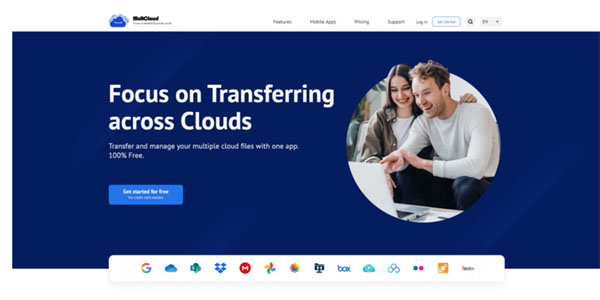
Enter MultCloud, the superhero of multiple cloud storage manager. This incredible tool makes migrating Google Drive between accounts a breeze.
With the help of the cloud transfer service MultCloud, you can easily manage several cloud storage accounts from one location. It resembles having a digital sky control tower. You can quickly move data between several cloud storage services, such as Google Drive, Dropbox, OneDrive, and many more, with MultCloud.
Key Features of MultCloud for Google Drive Migration
- Direct transfer: Move files between Google Drive accounts without downloading.
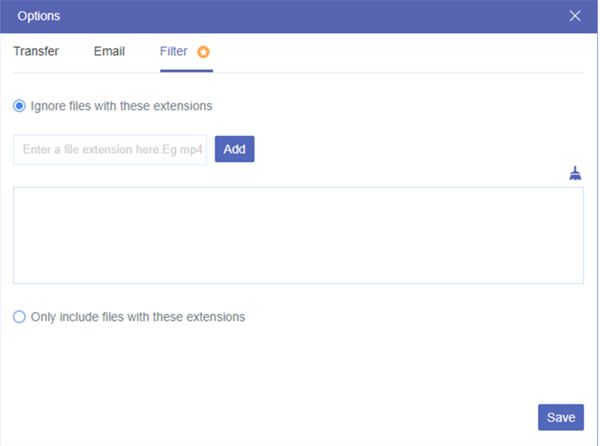
- File filtering: Choose exactly what to migrate based on file type.
- Scheduling: Plan your migrations in advance for maximum convenience.
- Resume transfer: Pick up where you left off if a transfer is interrupted.
- Security: Your data is safe with MultCloud’s robust security measures.
Step-by-Step Guide to Migrating with MultCloud
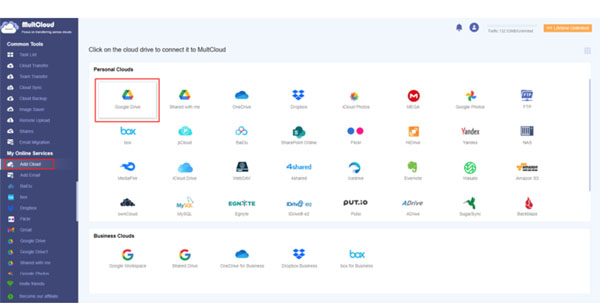
Ready to embark on your Google Drive migration adventure? Let’s get started!
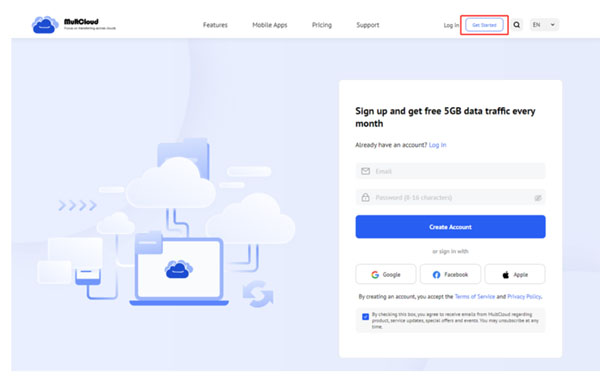
Step 1: Creating a MultCloud Account
The first step is to create a free MultCloud account. It’s quick and easy, and you’ll be up and running in no time.
Step 2: Adding Your Google Drive Accounts
Once you’ve created your account, add both your old and new Google Drive accounts to MultCloud. This gives you access to both drives within the platform.
Step 3: Selecting Files and Folders for Migration
Now, it’s time to choose what you want to move. MultCloud offers flexibility:
- Choosing Specific Files: Select individual files for migration.
- Migrating Entire Folders: Move entire folder structures with ease.
Step 4: Configuring Migration Settings
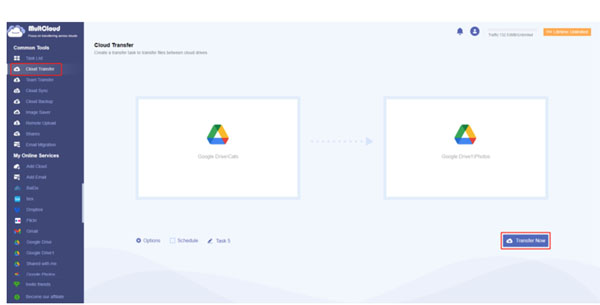
Before you hit the “Transfer Now” button, take a moment to fine-tune your migration.
- Scheduling Migrations: Want to migrate during off-peak hours? No problem! Schedule your migration for a specific time.
- Setting File Filters: Use filters to include or exclude files based on file type.
Step 5: Starting the Migration Process
After setting up all the necessary parameters, click “Transfer Now” to begin the migration; MultCloud will take care of the rest.
Step 6: Tracking the Migration Process
You can monitor the migration’s progress using the progress bar and pause or cancel the transfer at any time.
Advanced Migration Tips
Want to take your Google Drive migration to the next level? Check out these tips:
Migrating Large Files Efficiently
For large files, consider using MultCloud’s scheduling feature to avoid overloading your network.
Resuming Interrupted Migrations
If your migration gets interrupted, don’t panic. MultCloud allows you to resume the transfer from where it left off.
Troubleshooting Common Issues
Encountering problems? MultCloud’s support team is ready to assist you.
Benefits of Using MultCloud for Google Drive Migration
Using MultCloud to migrate your Google Drive has numerous advantages:
Time-Saving and Efficient
Say goodbye to hours spent manually transferring files. MultCloud automates the process, saving you time and effort.
Safe and Secure
Your data is protected with MultCloud’s robust security measures. You can transfer files with confidence.
User-Friendly Interface
MultCloud’s intuitive interface makes it easy to navigate, even for tech novices.
Additional Cloud Storage Support
Beyond Google Drive, MultCloud supports a wide range of cloud storage platforms, making it a versatile tool for all your cloud needs.
Conclusion
Google Drive migrations don’t have to be a difficult process. You may easily transfer your files to a new account with MultCloud as your reliable sidekick, saving you the trouble of downloading and re-uploading. So why wait? Give MultCloud a try and experience the magic of seamless cloud migration.